
Are you sick of billionaires spending our planet’s natural resources in an ungovernable game of Catan while a vast percentage of the world goes without regular access to drinking water? Do you hate that the technological “free market” has been boiled down to whose AI you’re using? Are you tired of being unable to use your search engine without funding the tech bubble that will likely burst America into the Marlon Brando of recessions? Have you maintained the standard that the tech shoved down your throat just to spy on you and harvest your data should at least consistently work??
If any of these questions spark something in you, then let’s remove one of the most annoying aspects of AI, the most pervasive bloatware and spyware in computer history, from your search engine!
Search Engines vs. Browsers: An Anal Distinction Explained
In order to avoid confusion, it’s important that you know the difference between a browser and a search engine.
A search engine is the software that generates links when you type your search into it. If you want to see what search engine you’re using, just search the word “dog” (or “Ruby Ridge” or anything really), and on the top left of the screen, you can usually see the logo or the name of the search engine you’re using.
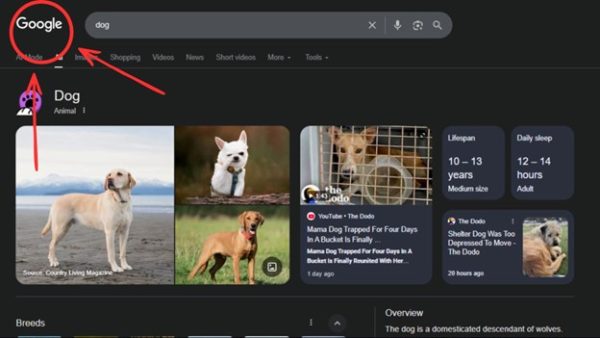
Examples of search engines include Google, DuckDuckGo, Bing, or Yahoo (boy, they sure drop off fast).
A browser is the software that the search engine runs on. You can’t use a search engine without one. If you want to know what browser you’re using, look at your taskbar.
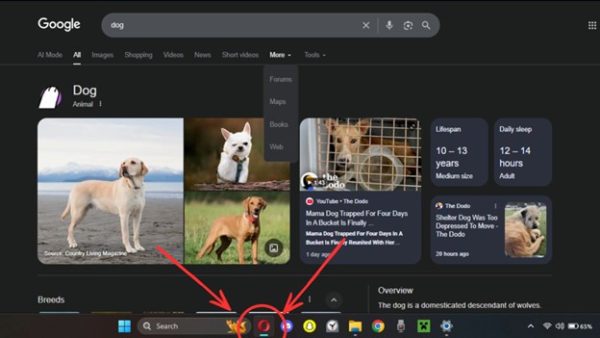
Examples of browsers include Google Chrome (if you’re wondering how it can be both, don’t worry. All will be explained.) Firefox, Edge, or Opera (the one I use and also the best one).
If you have trouble remembering the difference, just remind yourself that the search engine is the one that you actually SEARCH with, as in the software where you type “Fred Hampton Police Raid” or whatever you’re looking for.
You can use just about any search engine on any browser. Different combinations will have different advantages and disadvantages.
May God Help You If You Don’t Read This Part
First, though the article is organized specifically by search engines and browsers, the number of browsers/search engines that are out there and the number of differences between phones and computers means that any browser/search engine listed likely has a device or browser/search engine that, when paired with it, will prevent the tip from working.
If no tips work for any given browser/search engine, then consider changing browsers/search engines or using another tip that applies to that browser/search engine.
Second, I would look at tips for your search engine first because it is almost always the search engine (as opposed to the browser) that generates AI overviews.
Third, this article is a giant, so if you were me, you would figure out which browser/search engine you currently use and just skip to that section. The article is ordered so that it starts with Google (which is both), goes to Browsers, and then search engines.
Either way, please don’t try to read the whole article. You are better than that.
General tips
The Most Effective Way That Works on Every Major Browser (Just Try This One First, I Promise)
Use UBlock Origin (For Search Engines That Aren’t Google Chrome (Google Chrome Guide Below))
Ublock Origin is a highly popular, free adblocker. If the fact that its job is to selectively remove unwanted on-screen elements from your computer isn’t enough to clue you in to its significance, let me lay it out for you. Ublock has a very wonderful feature where you can literally pick elements on your browser that you would like to remove, and it will simply remove them in perpetuity.
There is something deeply and spiritually satisfying about simply clicking away “unremovable” garbage that a company has spent billions developing and even more money shoving down your throat.
You can download UBlock here.
Once you have it added to your browser, you can find it under your “extensions list.” A quick Google search should show you how to find it on your browser. You can usually access it by clicking on a puzzle piece icon in the top right corner.
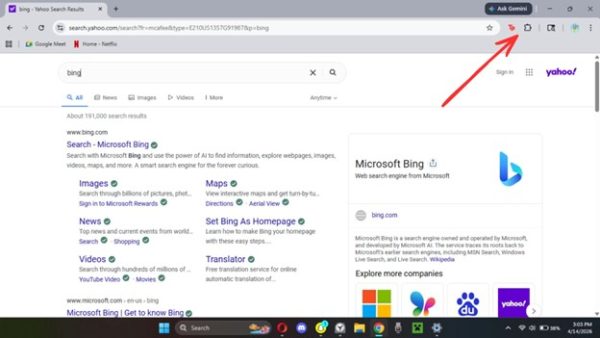
Now, find the Ublock icon and click on it. You will probably see something like this, unless you’re using Google.
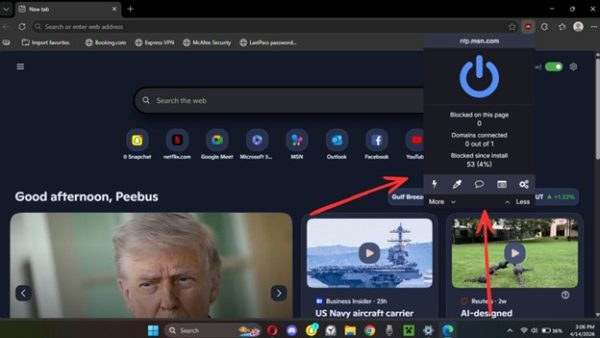
Click the syringe icon, and it will allow you to hover over your screen and select elements that you want to remove in red. Search for something that generates an AI overview and hover over it until the overview is selected.

Click when you have the AI overview (and nothing else!) covered. A box should appear on the bottom right. Click on “create”.

Bam! No more AI overview. Depending on the browser, there might be other AI components that will show up on screen, but you can keep repeating the step until they go away.
Use Ublock Origin (for Google Chrome)
You can download UBlock here.
Once you have it added to your browser, you can find it under your “extensions list.” You can access it by clicking on a puzzle piece icon in the top right corner of your browser.
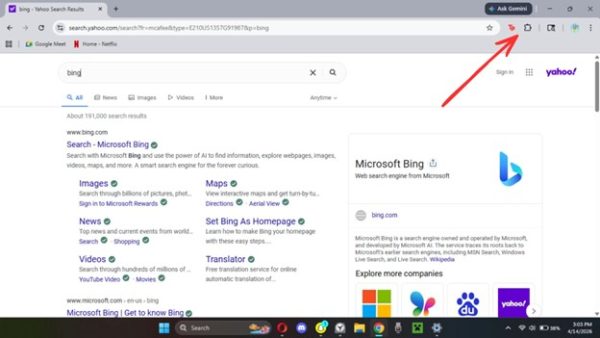
Now, find the UBlock icon and click on it. You will probably see something like this.

Click on “create a custom filter.” Now, as you hover your mouse over different elements on the screen, you will see a highlight appear over them. Hover your mouse over the AI overview until it (and nothing else!) is highlighted.
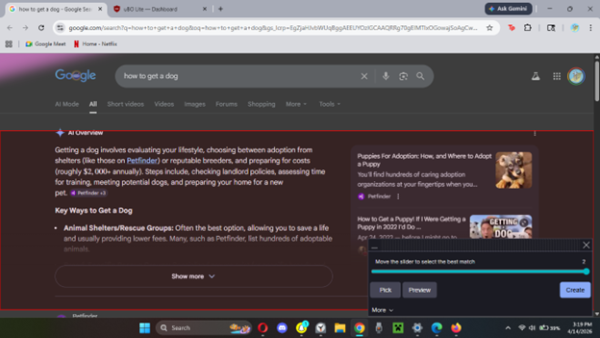
Just click on create, and you will no longer see AI overviews. It is an absolute godsend given the inconsistency of the tips later on in this article (that the parent companies of the browsers/search engines almost certainly didn’t spend billions to ensure).
Some Other Ways
Add “-ai”
Okay, so the first tip and the one that I used up until I tried the Ublock tip (which is really, really cool) is to simply type “-ai” after every search. If it seems like a lot, then just know you get used to it. I don’t even think about doing it nowadays.
It should be noted that this only seems to work on Google. Google sucks right now, but any other browser seems to suck a lot harder and not even give you this smidgeon of choice.
Add “before:2022”
This is another one that seems to only work on Google. As you might have guessed, it only shows results from before 2022: the year that AI was introduced to browsers.
Get a Different Search Engine
Okay, so if you are not on Google, your best bet is going to be to switch to Google because, even though the search engine still shoves its AI-flavored fingers in your mouth and down your throat, it also has the most methods of disabling it.
DuckDuckGo, which is recommended in the next paragraph, is a far better option. But, if you haven’t even gotten to a point where you are using Google as your search engine (which is to say that you are relying on some real bottom-of-the-barrel stuff like Bing or Yahoo), then I wouldn’t push yourself. It might be a bit overwhelming not to be bombarded by ads every time you open up your browser.
As I said before, your actual best bet is going to be to switch your default browser to DuckDuckGo. It has a very acceptable feature where it will actually ask you if you want AI search results, and you can turn them on or off. CRAZY RIGHT? One thing that I want to make abundantly clear is that not one of the specific search engines or browsers addressed in this article actually has a way to shut off AI results in the settings. Not. One.
DuckDuckGo will usually be among the recommended default search engines in your browser, so you can select it by going into your browser settings and finding the “search engine” section.
Next up, here are three alternative search engines that are not popular enough for you to be able to make them your default, but can be utilized relatively easily by making a custom search engine.
They are:
- Brave: This search engine allows you to disable AI results in settings.
- Mojeek: This search engine lacks an AI overview to begin with.
- Ecosia: AI features are optional, and the browser even plants trees with its profits.
Brave and Ecosia even have their own browsers that you can download to set the accompanying search engines as default. They work about as well as any of the big ones, and I highly endorse supporting a non-monopolistic tech company.
It should also be noted that there are ENDLESS search engines available because apparently, the more frequently you use a computer, the more fussy you get about pointless minutiae like quality of search results and the amount of your data that is sold to foreign entities. If you don’t like these options, then consider doing research on other alternatives to the best bloatware money can buy.
Now, if you’re dead-set on keeping up with the big ‘uns (as in Google Chrome or Edge) for the browser you use, these search engines cannot be set as your default. This means that the search bar won’t automatically show you results from them unless you go to their sites. That being said, you can create a custom search engine to access them fairly easily. Here’s how:
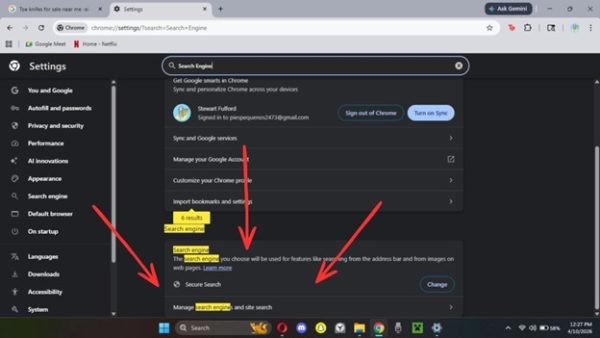
First, go to your browser’s search engine settings. I am using Google as an example. You can usually find them by typing “search engine” into the settings search bar.
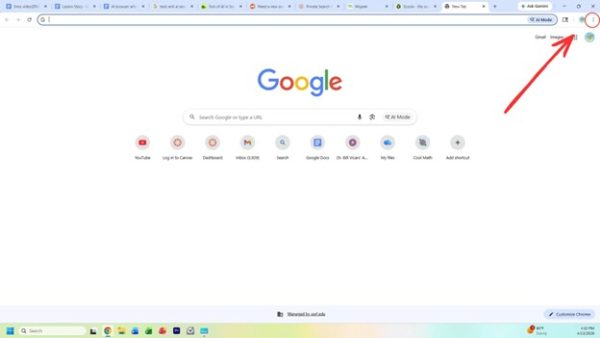
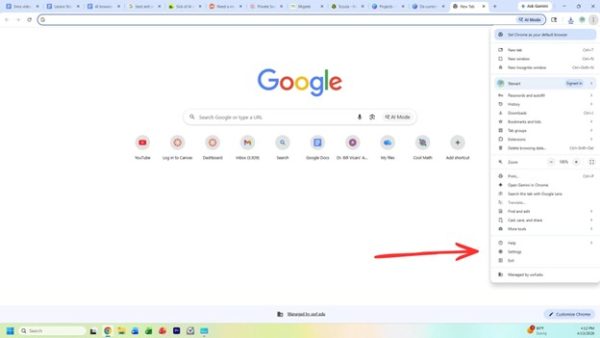
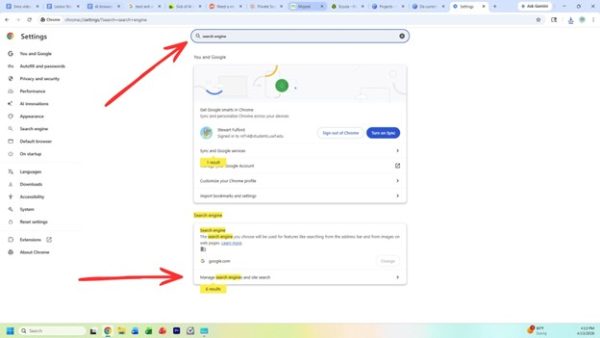
Next, you will want to find the setting to make a custom search engine. This will tend to be called different things based on the browser you’re using. In Edge, it seems to be called “search engines,” and when you click on it, you get to the page. In Google Chrome, you click on “manage search engines and site search,” and then it is under “site search”. Whatever browser you’re using, you can usually find it within search engine settings, and it will usually have the word “add” on a button near it.

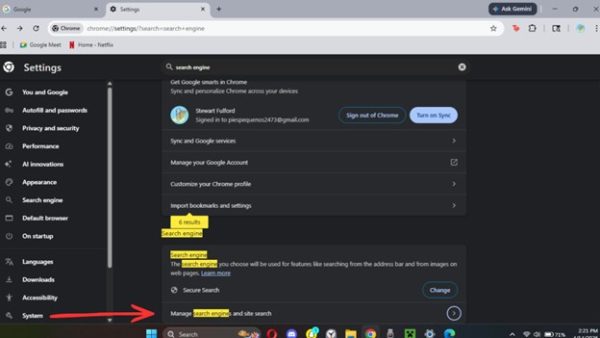
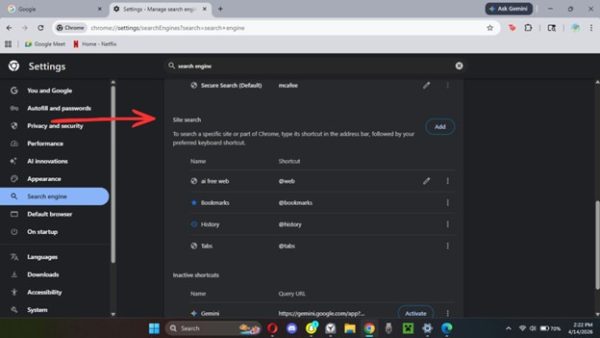
Click on add. You will see three boxes.
You can name it whatever you would like. The shortcut should be a symbol that you aren’t likely to put at the front of the search, like the “~” symbol, the “|” symbol, or even just a number. Finally, the third box should be filled in with the URL of the search engine you’d like to use. This way, if you put the symbol that you chose for the “shortcut” option and search, you will be taken directly to your browser of choice.

It’s pretty sucky that you can only choose the search engine that has made a blood oath with your browser’s corporate owner for your default engine, but at least you have an option that is marginally less difficult.
Google (A Browser and a Search Engine)
How the *&%$ can it be both??
Okay, so as the subheading says, Google is both a search engine and a browser. The search engine is just called “Google” and the browser is called “Google Chrome”. If you type “List of countries the US has overthrown” or anything else you’d want to search, you will find that there is a Google logo on the top left if you are using the Google search engine.
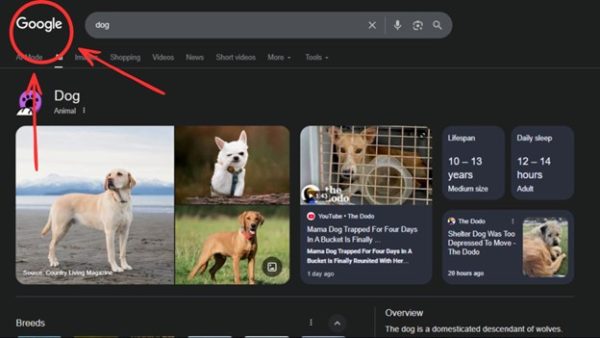
If you are using Google Chrome (again, the browser), you will notice that the program in your taskbar or dock (double sigh) is the Google Chrome Logo.
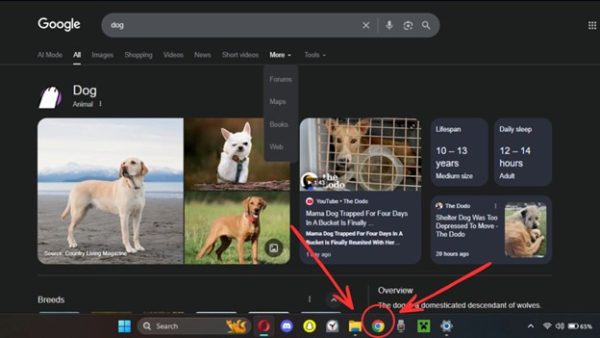
Technically, you can run Google (the search engine) on any browser, such as Firefox, Edge, or Safari. Many people do this. You can also run just about any search engine (such as Bing, Ecosia, or Google (god forbid) on Google Chrome (the browser).
The importance of this distinction is that tips with the (search engine) tag will work on just about any browser that has Google as its search engine, and tips with the (browser) tag will only work on the Google Chrome Browser.
The Easy Way: Turn them off in settings
Fun fact, you can’t actually turn off Google AI overview in settings! It doesn’t matter that a sizable portion of the internet has complained on forums and social media since it was released. It doesn’t matter that there are literally HUNDREDS, if not thousands, of resources that instruct you on how to remove it. Google has fed enough cash into this cow that it’s going to make you drink the milk whether you like it or not.
Gross analogy? Good. Now you know how I feel. I really only included this subheading to just hammer home how profoundly greedy and stupid this is. Sorry friends. I would do it again.
Click the Web Option (search engine)
This is probably the easiest and least efficient way to avoid AI overviews on Google. The way it works is that Google has a “Web” tab in the same place as the“video” and “image” tabs that you can select when you search for things. If you select it, you will see Google Search results with no AI overview.
You will have to click on “more” and then select it, usually. What do you know about that?
Default results

Web results
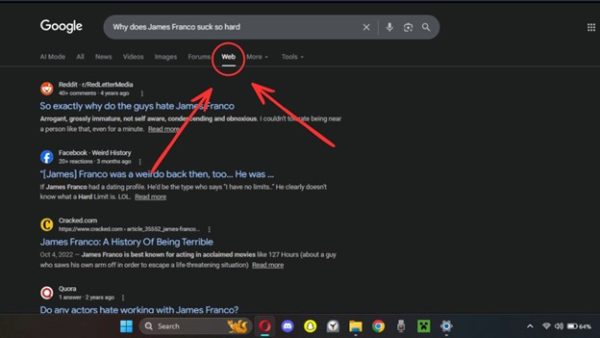
It’s nice to know that Google values its users enough to place the tab that removes AI results literally last in the list (behind popular tabs such as “books” and “forums”) while also designing it so that you have to select it after every single search.
Download extensions (Chrome Browser and search engine, depending on the browser you’re using)
Extensions are sort of like apps for your browser. They can do just about anything, from removing ads to simply changing the look and feel of your browser.
There are a number of extensions you can download that will effectively remove AI from your computer.
The first is an extension from tech YouTuber CyberCPU Tech called udm14. The way it works is that it automatically attaches the udm14 code to your searches, which forwards all results to the web tab. If you select it, you will see Google Search results with no AI overview.
Downloading this extension modifies your browser so that any and all searches are automatically searched in this tab. You can still see AI if you go back to the “all” tabs, but it will no longer be the first thing you see. You will also be dead to me.
There are countless extensions that promise to do this, and not all of them work. This is due mostly to the fact that Google works slightly differently depending on which search engine you’re using and that they change their software constantly, making it difficult for the extensions to keep up.
As a matter of fact, the second extension that CyberCPU Tech recommended, ByeByeAI, didn’t even work for me. I recommend giving it a shot if the first one isn’t your speed or didn’t work for you; you never know if it was just my computer.
As with all things. Your best bet for finding other extensions is to find a Reddit post with a title something along the lines of “What are good extensions for removing AI from Google” (be sure to specify that you are talking about the search engine, as that is what actually generates the AI overviews).
The Less Easy Way
Create a Custom Search Engine (search engine)
Okay, so this one probably sounds a little scary. If you don’t know what this means, you might have some impression of having to literally code and create your own search engine from scratch.
This is not that. As a matter of fact, the process is so simple that you can do it within Google’s (and most browsers’) settings.
- Go to settings by clicking on the icon with the three vertical dots on the top right, opening the box, and then clicking on the “settings” option between “Help” and “Exit” (towards the bottom).
- Type “search engine” into the search bar at the top.
- Scroll down to the “search engine” section and click on “Manage search engines and site search”.
- Scroll down to “Site Search” and click on “Add”.
- You will see a few blank boxes. Fill them in as follows, then click “add” or “save”:
- Name: AI Free Web
- Shortcut: @web
- URL with %s in place of query: {google:baseURL}search?q=%s&udm=14
- Click on the three vertical dots to the right of the “AI Free Web” box and then click “Make Default”.

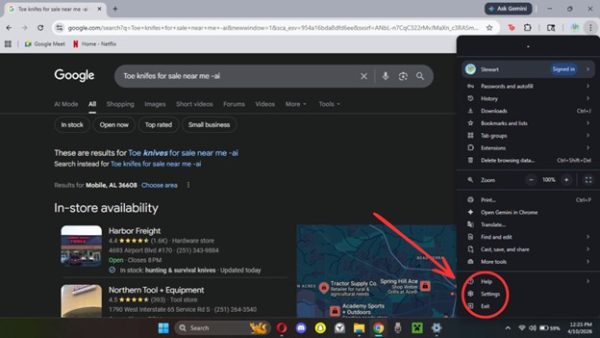
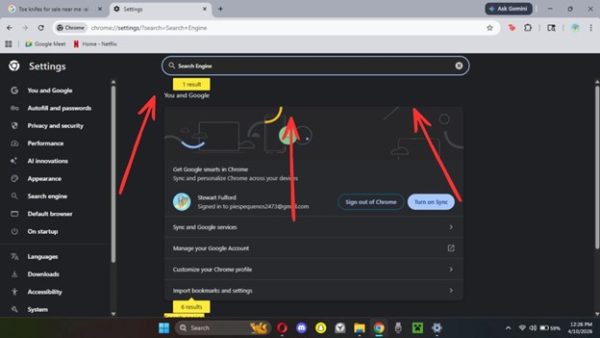
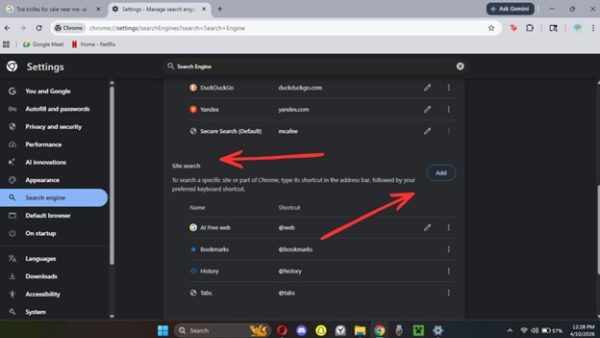

That’s it. What this does is it ensures that all results are automatically forwarded to the “Web” tab in Google search results. Go ahead and search, “Oil company political donations” or anything you’d like. There should be no AI results. That is, unless Google has finally decided to take this meager amount of freedom from us. Enjoy it while it lasts!
Microsoft Edge (A browser)
My main advice, in this case, would be to change browsers, but why not meet you where you’re at? I want to point out that Microsoft Edge is a browser, but NOT a search engine. This means that you are likely running either Google or Microsoft Bing as your search engine.
Go ahead and search “US Foreign router ban”, or whatever else you feel like, and look at the top left to see what search engine you’re using. Chances are, there is a section in this article for it. Tips for your browser and your search engine can usually be used at the same time, but more importantly, if one doesn’t remove AI from your searches, then you can either try a different tip for that search engine/browser or try a different combination of tips for your Browser/Search engine.
The easy way: Change it in settings
You can’t. I’m not going to bury the lead. Microsoft is basically championing the push to make AI the slope of the future. There’s a reason why you can’t even watch a tech ad anymore without having some butthole-shaped logo stain your eyes.
The less easy way: Microsoft flags
Okay, so the way that this one works is that you utilize something you probably have never heard of called Browser flags. They are on just about every browser, but are rarely used because most people don’t even think of browsers as something that can be modified. This is because most people don’t spend enough time on browsers to develop opinions about them, as they would rather spend that time meeting people and doing things.
Browser flags are experimental settings in your browser that can be activated or deactivated by users who know how to find them. You can find most Browser flag collections by typing insert browser://flags into your search bar (In Firefox, the feature is found by typing “about:config” into the search bar.
Type “Edge://flags” into the search bar, and you should see this:

What you see here is a list of the available flags and boxes that you can select to enable or disable them. Most are in the “default” setting.
Right off the bat, we see a lot of settings that I personally cannot even begin to glean the purpose of. We will be ignoring those.
Typing “copilot” shows you a few things that are probably worth removing, but anything else will take either some patience or creativity to find.
All in all, it’s kind of a sucky tip, I know. Unfortunately, Edge somehow gives you even less of an ability to remove AI than other platforms in an industry that is trying to inject it into your skull any time you so much as try to look up the weather.
I would personally always recommend switching browsers, but if you want to stick with the browser equivalent of the photo of the happy family that comes with the picture frame when you buy it, I commend your brand loyalty.
Firefox (a browser)
The easy way: Get an extension
Okay, so the first thing you can do to help with AI overviews in Firefox is to get this extension.
Unlike a lot of other anti-ai-overview extensions, it actually seems to function pretty well. You basically download it, click the button that it provides to give it permissions, and then the Google AI overview stops appearing.
It seems to do the same thing as the Google custom search engine tip. Which is to say that it simply forwards all searches to Google’s web tab.
There is no hard way here because none of the other “hard way” strategies of the other browsers or search engines seemed to work, and the ones specific to Firefox either removed AI programs other than the overviews or just didn’t seem to work.
If you use Chrome, the answers in the “Google” section are likely to work here.
Bing (A Search Engine)
Okay, so the bad news is Bing has basically no way to remove its AI feature. It’s owned by Microsoft, which (surprise surprise) removed the setting to disable AI overviews some months ago.
It’s stupid, it’s scummy, it’s trashy, and it’s the modern state of big tech. Somehow, Microsoft, in an act of brand unity, created a search engine that was every bit as obnoxious as their Browser: Edge.
My advice for you is to use a different browser. If you aren’t up for this (Cmon man), then I would recommend using some of the general tips mentioned above. I should note that a few of these tips that work in other browsers DON’T EVEN WORK IN BING. Save yourself the trouble. End this abusive relationship while you still can.
Some Parting Words
I hope that you got some nuggets of good advice from this article. If not, then try another. A lot of very smart, very cool people hate AI overviews and other AI “features” as much as I do.
Just remember that if you want to eliminate a problem, tech or otherwise, but don’t know how, you’re probably just a small bit of knowledge away from being able to fix it.
Reach out to your community (online or otherwise), cultivate an attention span, and learn how to learn. Do some combination of those three things, and a lot of problems (online or otherwise) become a lot less impenetrable.